Why Product Color Changes Matter
Product photos may need color-variant previews. A browser-based color changer can help test simple variants for clothing, accessories, packaging, furniture, and handmade goods before final assets are produced.
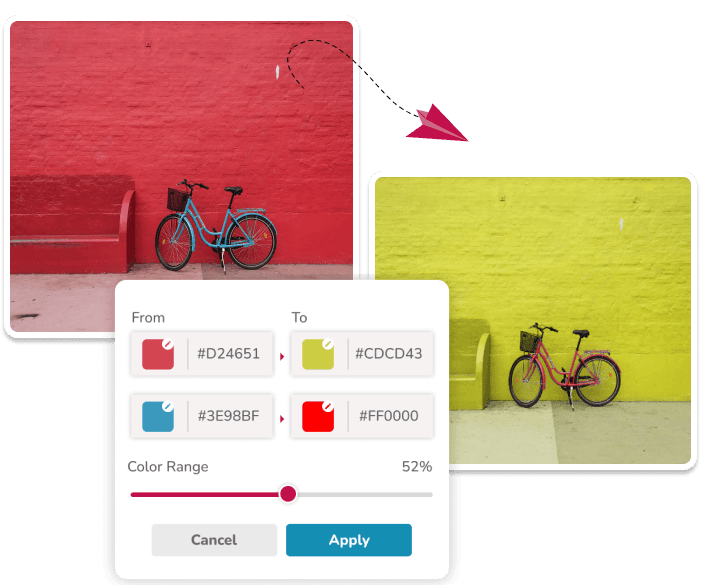
The editor matches hues across the entire image rather than selecting a product. It attempts to retain tonal variation, but folds, shadows, reflections, and unrelated areas must be inspected after every change.
Best Workflow for E-commerce Images
Start with the cleanest product photo you have. Images with clear separation between the product and background are easier to recolor, because the source color is less likely to appear in unwanted areas.
Select the current product color as the source, then choose the new variant reference. Increase tolerance slowly while checking the product, background, shadows, and details. If darker folds remain, a second replacement pair may help, but it can also affect matching shades elsewhere.
- Use PNG when transparency is important for storefront graphics.
- The editor accepts JPG photography but downloads the result as PNG.
- Keep the same canvas size across variants so your catalog grid stays consistent.
- Check edges and shadows before publishing the final image.
When to Use More Than One Color Replacement
Many product photos contain several related shades: a bright highlight, the main surface color, and a darker shadow. One replacement can handle simple items, but textured materials often look better when you add another source color for the shadow or accent area.
For brand work, you can also replace multiple colors at once. For example, you might recolor packaging, label accents, and a background prop in a single pass to test whether a campaign palette works.
Quality Checks Before Downloading
After applying the color change, zoom in around edges, transparent areas, small text, and shadows. If unrelated parts changed, lower tolerance or choose a more specific source color. If parts of the product did not change, increase tolerance or add another replacement pair.
Treat the result as a preview until you verify the product, edges, text, light, texture, and unrelated same-hued areas. Exact commercial color matching needs a color-managed workflow.
Questions About This Workflow
Can I use this for clothing color variants?
It can preview simple apparel changes when the source hue is distinct. Textured fabric, folds, reflections, and a background with similar hues can produce partial or unwanted changes.
Will it create final marketplace-ready photos?
Treat the output as a preview until it has been checked for product accuracy, unintended changes, and marketplace requirements. Use a designer or photographer when exact color or object masking matters.
How do I keep shadows natural?
Use tolerance carefully and add a second color replacement for darker folds or shadows when needed. This keeps the product from looking flat.
Related Workflows
Use the image color changer for the broad replacement workflow.